In order to begin using the QNOPY Mobile App for field data collection, you must first be assigned to a project or create a new project in the QNOPY Web Portal.
Once the project is created, forms are assigned, and users are assigned, you are able to start a new field event and begin field data collection using the QNOPY Mobile App.
Note: If a project has been assigned to you, chances are that forms and users are already assigned. In that case, you can immediately begin data collection on the QNOPY Mobile App.
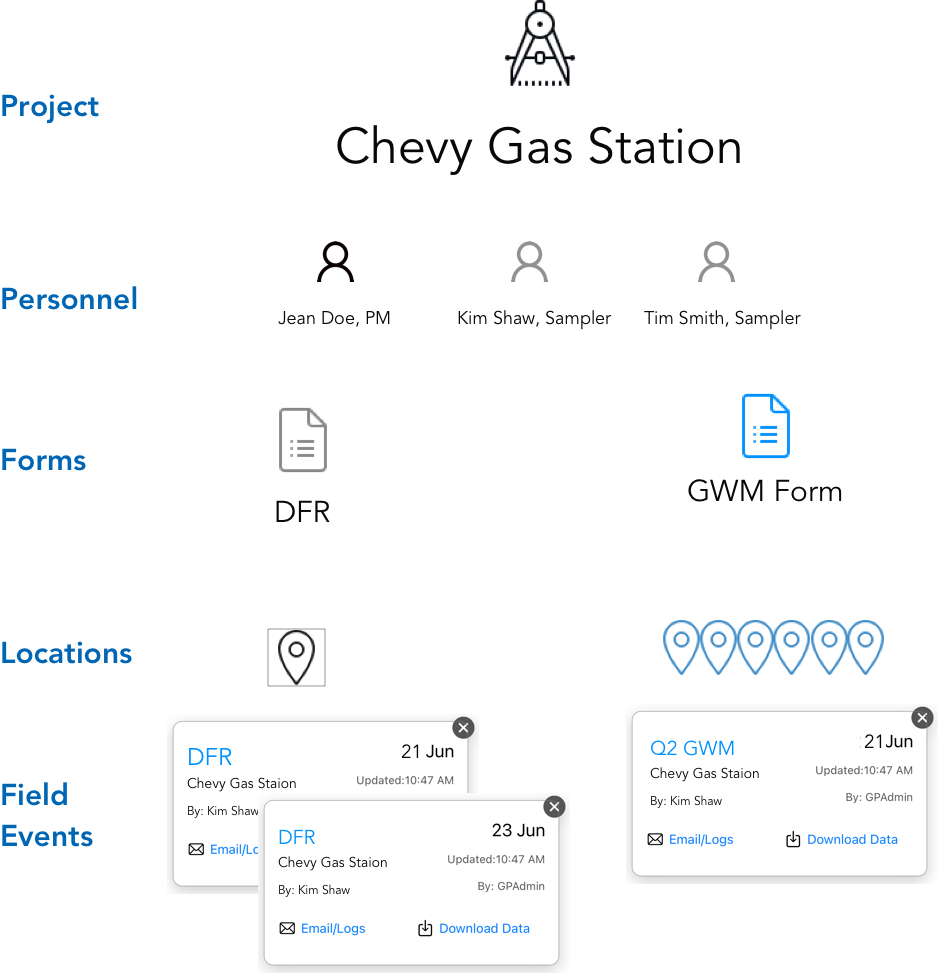
- Project
Projects are the largest component in QNOPY that all other pieces live under. Anyone with a QNOPY account at your company can be assigned to a project. Similarly, any form built for your company can be assigned to any project. All your "events" for a given project can be found by going into that project, and you can start or continue an event under a project in the mobile app.
- Personnel
Personnel are the user accounts within your company. Personnel can have different roles, such as "project manager" "standard user" "client admin" and so on. Most people will be assigned as PMs, so that they can edit data on the web portal after forms are complete and uploaded onto the web portal.
Working collaboratively with team members
- Forms
Forms are the building blocks of QNOPY. Examples are groundwater monitoring, soil boring, daily field log, health and safety, and so on. Any form you have in paper or other format can be given to a QNOPY rep to be made digital, so that you can access them on the mobile app. Any form can be assigned to a given project; you can assign anywhere from 1 form to all forms made for your company.
- Locations
Locations by QNOPY are the next piece under forms. Once you select the form you want to work with under a given project, you'll then be brought to a screen that has you select your preferred location. For forms like daily logs, these are not significant and you will most likely select "default site location". For groundwater monitoring, though, you'll want to select the monitoring well you're taking your data at. Locations also include gps coordinates, and can be mass uploaded ahead of time on the web portal. Or, you can individually add them in on the app.
Managing locations on the mobile app
Managing locations on the web portal
- Field Events
A field event is just any time you fill out a form in QNOPY. Under your projects on the app, you'll see the option to "start a new event". This just means you'll fill out a new form. Completed events are submitted by pressing the upload button, and then are visible on the web portal by going into your project.
Starting a new event on the app
Viewing and scheduling events on the web